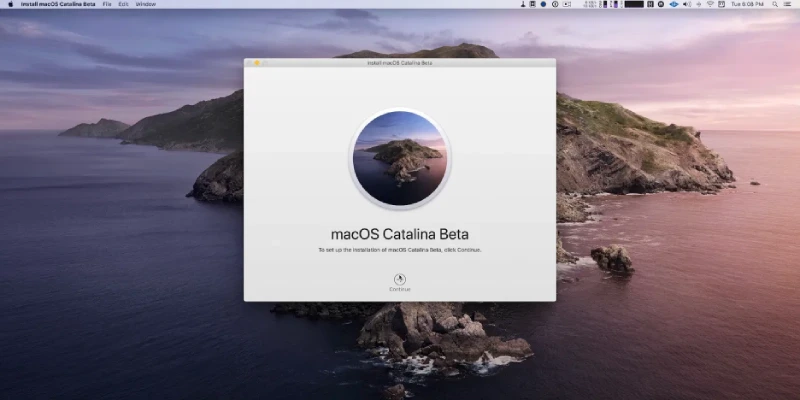
Here we have this easy guide for you that will tell you how to clean install macOS Catalina and the rest of the older versions. Always keep in mind that if you are going to opt for a regular clean installation job for your macOS system, then this routine will fully boost up the speed of your Mac.
Furthermore, you may get rid of and be able to tackle other technical problems. So, let us read about the guide regarding how to Clean Your Mac:
How to clean install macOS Catalina
To get started off this process, you will need 15GB. Or you can even grab a larger removable USB flash drive. This way, this device will be in a position to easily and conveniently hold the installed file. In addition, you need all admin privileges for your Mac system.
The last important point is to make a backup of your system. You never know if this installation process goes wrong or becomes messy.
So, do have a backup at your end of your important files and folders. If you do not want to make a backup, then you are allowed to sync all your data and files right with iCloud.
Steps
As soon as this USB installer is created and developed on your system, now you can freely install Catalina.
To perform this job, first of all, you have to restart your Mac. You need to keep on holding this key that state Option (⌥) when you are going to hear the reboot tone.
Choose the disk that is named and termed as Install macOS Catalina. It is present in your drive list. Now, choose Disk Utility, select your Mac’s startup drive and finally click Erase.
If you are seeing that your Mac’s startup disk has started to be formatted, then you can return back your Utilities window. There you need to choose Install macOS and follow all of the onscreen prompts so that you can complete and finish this installation.
How to clean install macOS older versions
If you have got an older version of macOS and still you want to clean it, then you can easily get needed and required versions of macOS right there in the Purchased section department of the App Store.
What you can do is to sign into the Mac App Store. Enter your Apple ID. Hit on the Purchased menu bar and download the version that you are in need of.
Conclusion
This is how you can clean and install macOS Catalina. If you have any questions on this installation process, then share that with us.
More guides on these installation procedures are coming up, so stay tuned with us.
Not all revolutions start with noise, some begin with a quiet shift in how we… Read More
Delvia Holidays has reported a significant rise in demand for international family tours, reflecting a… Read More
EdvanceNow has announced the launch of its Career Accelerator MBA and DBA programs, aimed at… Read More
A Complete Summer Skincare Guide by Blossom Kochhar Aroma Magic Summer is not just a… Read More
The United Arab Emirates has emerged as a global hotspot for luxury travel, attracting visitors… Read More
Google is introducing the standalone Gemini Enterprise app for Android, which will deliver its corporate-grade… Read More


