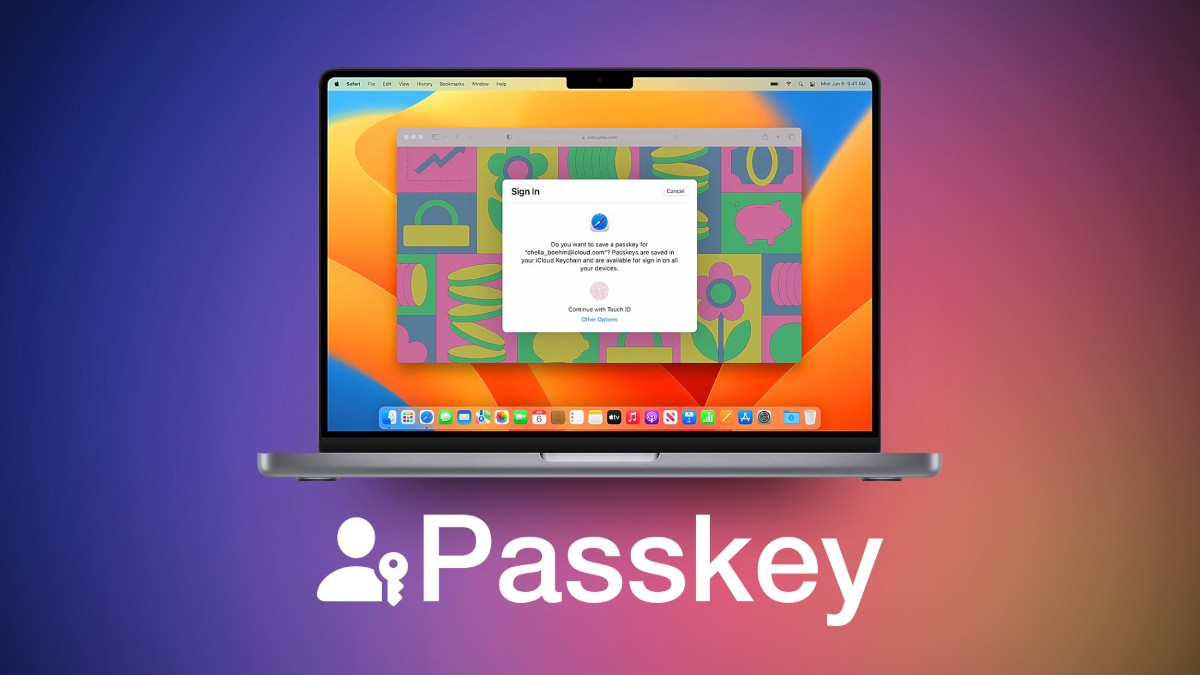
Passwords have always been a necessity, allowing you to choose between using one that is too easy to remember or one that is secure but obscure enough to necessitate a password manager.
Up until now, pairing a password with two-factor authorization was the best way to keep your accounts safe. However, Google now provides an additional option: using a passkey, a safe credential that is connected to the PIN, or biometric authentication that your device already uses. This makes the passkey even safer because it only exists on your device and not in the cloud.
At the moment, you can create a passkey on any hardware that is compatible, such as desktops or laptops running Windows 10 or macOS Ventura (or later) and Chrome 109, Safari 16, or Edge 109 or later. A mobile phone or tablet that runs iOS 16 or Android 9 (or later) must be used to set up a passkey. You can likewise use it with any hardware security key that supports the FIDO2 protocol.
If you want to use your phone to sign into another device, such as a laptop, you will also need to have Bluetooth turned on. Additionally, you will need to enable a screen lock.
Lastly, you won’t be able to create a passkey for a Google Workspace account you have through a school or employer. However, you can use it for any personal Google account.)
You will be prompted to select Use another device in a pop-up that allows you to use either the device you are currently using as the passkey (in which case select Continue). If this is the case, you will be given a QR code to scan using the camera on your phone.
You might also be asked to enable iCloud Keychain on an iPhone.
You’re done now!
If the passkey was one that you created, you can get rid of a device from your list of passkeys.
You must sign that device out of the account to delete the passkey if it was generated automatically by Google.
Yes. You can resume using passwords and two-factor authentication if you so choose. Note: The account will still contain the passkeys; They simply won’t be used.)
Successful branding is not about knowing who your customers are or what they buy; it's… Read More
The Perseid meteor shower has become active starting July 17, joining two additional meteor showers… Read More
Home has a way of changing the rhythm of a performance. Familiar lyrics carry a… Read More
Why Nataliya Palakanis believes the future of luxury residential construction isn't bigger homes; it's better… Read More
Future secures his 12th No. 1 album on the Billboard 200 as his newest studio… Read More
Although the FIFA World Cup concluded with Spain defeating Argentina on Sunday (July 19), the… Read More
