
Tech
AirPlay Guide: Stream Your iPhone, iPad, or MacBook to a TV

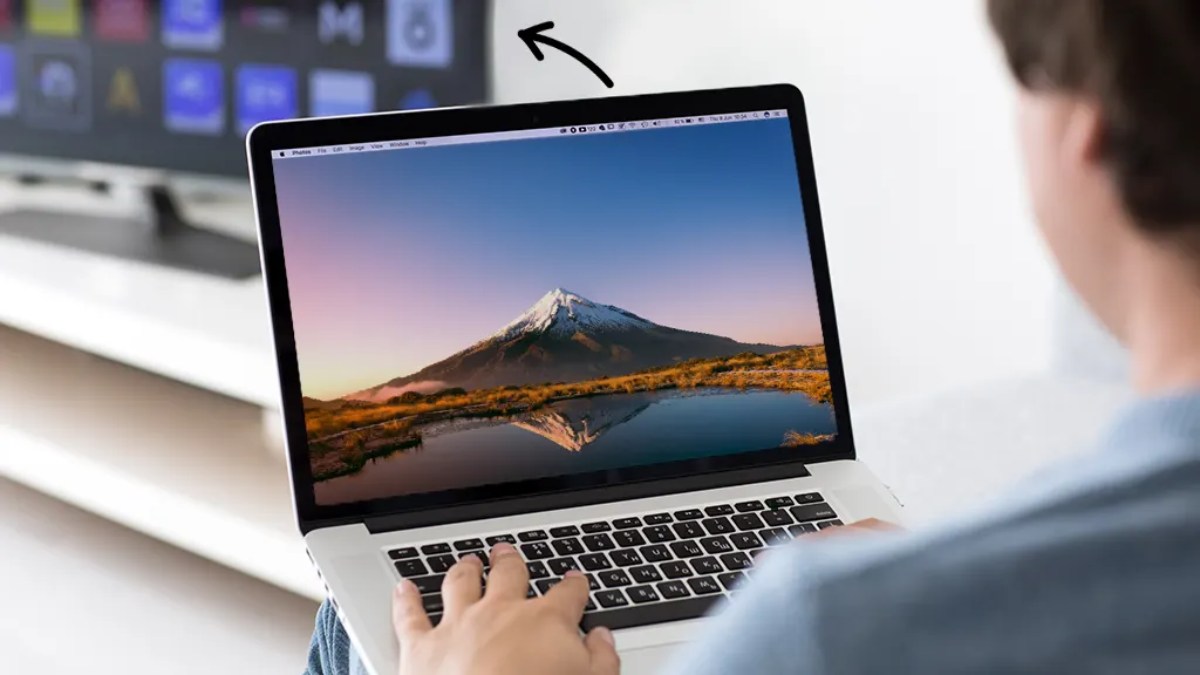
There are numerous ways to put content on a larger display, including connecting a dedicated streaming device or using the smart TV operating system already built into the television. You can also send content wirelessly with technologies such as Chromecast and Apple AirPlay, both of which “cast” (wirelessly send) content from a phone, tablet or laptop to a TV. This can be particularly useful for watching a movie or show from a streaming service on a hotel television or playing music through the TV’s speakers.
Using AirPlay from an iPhone or MacBook to connect with a TV is straightforward, provided the television supports AirPlay. The steps are almost the same across iOS devices and work in a similar manner regardless of the TV brand.
How to AirPlay From an iPhone or iPad to a TV
Before AirPlaying from your iPhone or iPad to a television, make sure the TV and iPhone are connected to the same Wi-Fi network and confirm that AirPlay is enabled on the TV. To verify this, open the television’s Settings menu and look under Network, Connections and Apple AirPlay & HomeKit, then switch it on if necessary. (The exact menu names may vary somewhat by TV manufacturer.)
After that is confirmed, open the content you want to watch in a compatible application on your iOS device, such as Prime Video or Disney+, and tap the AirPlay icon in the upper-right corner. The symbol resembles a small rectangle with an arrow pointing upward. With services such as YouTube, tap the cast icon (a rectangle featuring Wi-Fi wave lines) and then choose AirPlay. If several devices appear, select the one you want to connect to.
To AirPlay pictures from Photos, first tap the Share button (the square containing an upward-pointing arrow), then select AirPlay from the available options. Some other applications may follow this same sequence. When playing music, the AirPlay symbol (an upward arrow with three arcs above it) appears inside the music playback panel in Control Center.
If you expect to AirPlay regularly to the same television, you can modify the settings to make the connection automatic, provided your iPhone or iPad is running the latest OS. Open Settings, choose General and then AirPlay & Continuity. Under Automatically AirPlay, you can select from three options: Never (manually complete the steps above each time), Ask (the device will recommend AirPlay when it believes you may want to use it and wait for approval) or Automatic (the device will establish an AirPlay connection without requiring any input).
No AirPlay Button? Use Screen Mirroring From Your iPhone
Although you cannot AirPlay something such as a document or Safari browser tab in exactly the same way, AirPlay includes a feature called screen mirroring. To use it, swipe downward from the upper-right corner of your iPhone display to bring up Control Center. Several icons will appear, including one showing two overlapping squares. (If you don’t see it, tap the “+” symbol in the upper-left corner, choose Add a Control from the bottom, locate the Screen Mirroring icon and add it to the home view.)
Tap the icon, choose your television, and a pairing passcode may appear if this is your first connection. If one appears, confirm it, and everything shown on your iPhone, including live navigation activity, will appear on the TV. When you’re finished, tap the screen mirroring button again to end the connection.
This method can also be used to play video when the website you’re visiting does not provide AirPlay support. Turn the phone horizontally and expand the video or locate a full-screen control, which commonly appears as a square outline with four corner marks or four outward-pointing arrows. You may need to modify display settings to achieve the desired appearance, and the exact procedure can differ between applications.
AirPlay and Screen Mirroring From a MacBook to a TV
To AirPlay from a MacBook to your television, first verify that AirPlay is enabled on the TV and that both devices use the same Wi-Fi network. Then open System Settings on the MacBook, select General and AirDrop & Continuity (which may instead be labeled AirDrop & Handoff). Confirm that AirPlay Receiver is switched to the “on” position.
Open the material you want to send to the larger display on your MacBook and click the same rectangle-with-upward-facing-arrow icon, or use the Share icon if the AirPlay symbol isn’t visible among the playback controls. Choose your television from the device list. As with an iPhone, you may be prompted to enter a pairing passcode.
For MacBook screen mirroring, click the Control Center icon in the upper-right corner of the MacBook menu bar, which resembles two overlapping toggle switches, and choose the Screen Mirroring icon. Select your television from the list, and the MacBook’s content should appear on the larger display almost instantly.
MacBook screen mirroring also provides several additional choices. While mirroring is active, open the Screen Mirroring menu on the MacBook and select Change. You can then choose to send the entire MacBook display to the television, show only a currently active window or application, or extend the display and use the TV as a second screen. When using screen mirroring for video, you may also need to change your Mac’s audio output so sound plays through the television. Click the Control Center icon, select the triangle with three arcs beside Sound and choose your TV as the output device.
What Should You Do If You Encounter Errors?
Although Apple AirPlay generally performs reliably, occasional problems can still occur. I use AirPlay every day to put workouts from a fitness app on my phone onto a large-screen TV. It functions properly 95 percent of the time, but there are occasional situations where it won’t connect or the connection is interrupted. The easiest fix is to turn everything off and start over. Switching Wi-Fi off and back on for both the television and phone can also resolve synchronization problems between the devices.
Certain applications prevent screen mirroring because of copyright restrictions or because they handle protected and confidential information. Some banking applications, for instance, may behave this way. When that happens, the television will display only a black screen. The easiest alternative is to connect the iPhone, iPad or MacBook directly to the television using an HDMI cable. Another option is to open the application through a streaming device such as an Apple TV or through the TV’s built-in smart interface.
Keep in mind that Netflix does not support AirPlay. Casting can be used with a compatible television, although the streaming service recently stopped supporting casting on newer TV models. On televisions where casting remains available, the feature works only with a Standard or Premium plan.








How Fahad Riaz Is Taking a Four Decade Family Legacy Forward With Milele Prime

Outgrowing Isn’t Giving Up: Hayson Tasher Sr. on Choosing Growth

Apple Pay Launches in India With Axis Bank as First Banking Partner

Alicia Lacao-Green gains worldwide fame owing to her amazing transformations via make-up and contouring.

Amplifyou, an amazing agency for eCommerce

Vasid Qureshi, India’s Top Blogger Shares 5 Tips to Go Viral on Social Media

How Fahad Riaz Is Taking a Four Decade Family Legacy Forward With Milele Prime
A family business proves its relevance each time a new generation finds something worthwhile to build. For Fahad Riaz, Milele...

Outgrowing Isn’t Giving Up: Hayson Tasher Sr. on Choosing Growth
Sometimes, the biggest opportunities begin when you realize you have outgrown where you are. For Hayson Tasher Sr., that realization...

Apple Pay Launches in India With Axis Bank as First Banking Partner
Apple started introducing Apple Pay in India on Tuesday. Axis Bank, the country’s third-largest private-sector lender, is its first banking...

Google Will Replace Gemini Gems With Skills in November 2026
As all-in-one AI agents such as Meta’s Muse and Instinct gain momentum, Google has announced that it is discontinuing the...


MLB 2026 Playoffs: Full Postseason Schedule, Wild Card and World Series Dates, Games, and TV Networks
Major League Baseball’s 2026 postseason begins Tuesday, Sept. 29 with four best-of-three wild card series, with two taking place in...
-
Sports1 week ago
MLB 2026 Playoffs: Full Postseason Schedule, Wild Card and World Series Dates, Games, and TV Networks
-

 Science2 weeks ago
September 2026 Full Moon: When, Where, and How to See the Harvest Moon
-
 Tech3 weeks ago
Google Adds Search Profile Badge for Websites
-
Tech1 week ago
Google Will Replace Gemini Gems With Skills in November 2026
-

 Tech2 weeks ago
Startup Compliance Checklist: Product Registrations Before You Scale in 2026
-

 Tech2 weeks ago
Google Gemini for macOS Adds Support for Apple Messages
-

 Tech3 weeks ago
Samsung One UI 9 Adds My FanCam and Smarter Galaxy AI Features
-
 Gadget2 weeks ago
How to Customize AirPods Settings in iOS 27