
Tech
How to Create Custom Emojis Using Genmoji

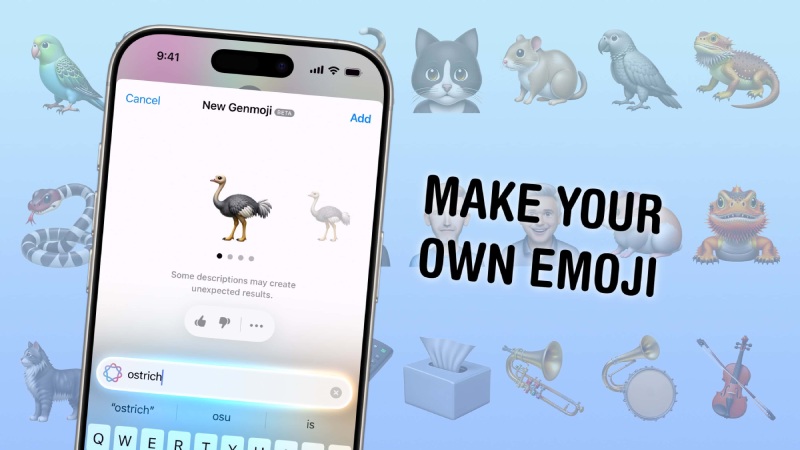
iOS 18.2 and iPadOS 18.2 are now available, giving iPhone and iPad users access to a slew of new Apple Intelligence-powered features. That includes Genmoji, a new type of AI-generated emoji that debuted at WWDC 2024.
What are Genmoji?
Genmoji are custom emojis that may be created after installing the iOS 18.2 or iPadOS 18.2 updates. They are your imagination’s emojis, brought to life with the power of Apple Intelligence – you describe the emoji you want to see, such as a sad cowboy or an octopus DJ, and Apple’s AI will do its best to make it. You may even make custom emojis for people you know if you have a photo of them in your library. Once you’ve created Genmoji, they’ll be saved in your keyboard and accessible in Apple apps that support emoji. They can be sent as part of a message, as standalone stickers, or as Tapback reactions.
How to Create Genmoji
To create a Genmoji, you’ll need a device running iOS 18.2/iPadOS 18.2 or later that supports Apple Intelligence. This includes all iPhone 16 models, iPhone 15 Pro and iPhone 15 Pro Max, iPad models with the M1 chip or later, and the iPad mini (A17 Pro). Genmoji can now only be created on iPhone and iPad, but Apple says the feature will be available on Mac in the future. The methods for creating a Genmoji are the same for both iPhone and iPad.
First, start a discussion and tap the text field to bring up the keyboard. Tap either the smiling or the globe icon, depending on which you have. After that, you should see a multicolored smiling icon with a plus sign in the upper right corner of the keyboard. Tap it, and a text bar will open, prompting you to describe the emoji you want to make. Enter the description and then click “Done.”
If you’re creating a Genmoji of a specific person, make sure you’ve previously identified them in your Photos app. Then enter your description and select the “Choose a Person” option above the text field. It will show you who it has identified from your images, as well as a few style options to get you started. Click the one you like, and it will generate the Genmoji with that character.
The results may not be to your liking on the first try, so simply tweak your description until you obtain better results. Once you’ve created Genmoji, you can access them on your keyboard by swiping right through all of the emoji options or tapping the sticker icon. You can also add them to Tapback by tapping and holding a message and then selecting the smiley with the + sign icon to search the emoji keyboard.
How to Delete Genmoji
If you create a Genmoji and then decide you don’t like it anymore, you can easily delete it. To achieve this, return to the emoji keyboard and either swipe right through all of the pages or tap the sticker icon. From there, find the Genmoji you wish to remove, press and hold it, and then tap Remove when the option appears.









Google Adds Search Profile Badge for Websites

Samsung One UI 9 Adds My FanCam and Smarter Galaxy AI Features

September 2026 Skywatching Highlights for US Skywatchers Include Venus and Harvest Moon

Alicia Lacao-Green gains worldwide fame owing to her amazing transformations via make-up and contouring.

Amplifyou, an amazing agency for eCommerce

Vasid Qureshi, India’s Top Blogger Shares 5 Tips to Go Viral on Social Media
Google Adds Search Profile Badge for Websites
Google left out one detail from its announcement about the new Search profiles features revealed today: users can now place...

Samsung One UI 9 Adds My FanCam and Smarter Galaxy AI Features
Samsung Electronics Co., Ltd. has announced that One UI 9 is expanding to additional Galaxy devices, with the rollout beginning...

September 2026 Skywatching Highlights for US Skywatchers Include Venus and Harvest Moon
September is offering skywatchers several opportunities to observe notable events. Venus will reach its greatest brilliance, the Autumn Equinox will...


Study Globally in Switzerland, UAE, Kyrgyzstan, Latvia, or the UK with SIU this October
SIU Swiss International University, a member of the VBNN Smart Education Group, has officially opened admissions for the October 2026...


Gastauer Family Office Connects Capital Allocation With Purpose
Why portfolio structure and the Gastauer Foundation matter after the June 2026 AUM revaluation The June 2026 Revaluation Resets the...
-

 Sports4 weeks ago
Concacaf Nations League 2026/27: Groups and Schedule
-

 Sports2 weeks ago
2026 FIBA Women’s Basketball World Cup Games and Schedule
-

 Science3 weeks ago
Sturgeon Moon 2026: When and How to See August 28 Full Moon
-

 Entertainment2 weeks ago
KISS Scores Highest Billboard Top Album Sales Position in More Than a Decade
-

 Entertainment2 weeks ago
Dolly Parton Takes No. 1 on Billboard’s Hot 100 Songwriters Chart
-

 Business4 weeks ago
Gastauer Family Office Connects Financial, Natural and Cultural Capital Through the Gastauer Foundation
-

 Business4 weeks ago
The Business of Building a Brokerage for the Long Term
-

 Tech2 weeks ago
Austin Morelock Breaks Down the Hidden Science of Tool Life: How Advanced Metalworking Chemicals Reduce Wear and Downtime